
Aqui está um guia [
e-criar ] de apoio a uma iniciativa interessante e que acredito que pode ter algum impacto
-
Oficinas do Conhecimento: Do Saber ao FazerVale a pena fazer o download do documento
e-book.pdf para tirar algumas ideias.
O documento tem a seguinte estrutura:
PlanearProcesso criativo:As ideias – como arranjá-las e escolher a melhor;
Organização – qual a forma mais eficaz de expor a ideia;
Objectivos – o que se pretende comunicar ou expor.
Pesquisar- Como e onde encontrar o conteúdo certo (textos, fotos, vídeos).
Seleccionar- Como distinguir as boas das más fontes de informação.
Editar
- Editar ficheiros de imagem, vídeo e som para que se adaptem às suas necessidades;
- Quais os programas de que vai precisar e onde os encontrar, muitas vezes, grátis.
Publicar- Registar uma homepage, um blog ou um álbum de fotos, no SAPO;
Personalizar o seu blog ou a sua homepage. Dar o seu estilo e toque pessoal.
- "Olá mundo, aqui estou eu". Use a pesquisa a seu favor;
- O que são tags, para que servem; como se usam;
- A diferença entre divulgar e melgar.
Comunicar- Perceber que o e-mail é muito mais do que um ende- reço de correio;
- Registar um endereço de e-mail. Como usar o e-mail; - A diferença entre spam e correspondência permitida;
- Boas maneiras online. Netiqueta.
Segurança- “Não aceites doces de estranhos” – uma verdade universal, online também;
- Os meus dados pessoais são meus e de mais ninguém.
 Esta é das ideias mais simples que vi para falar de um tema que é denso e pode ser maçador!!!

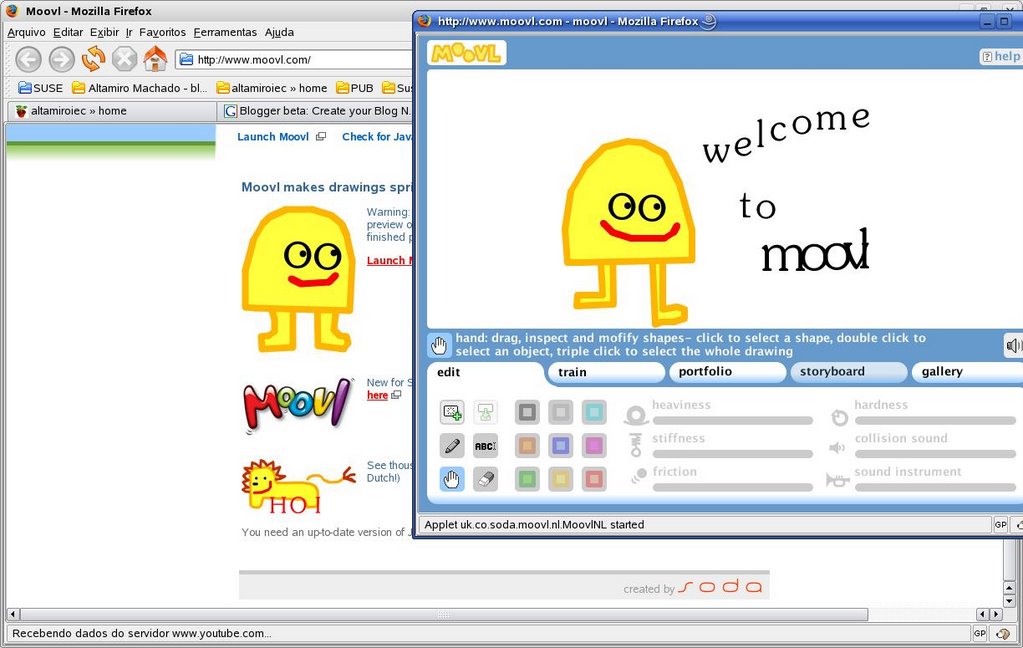
 When you start Moovl the pen tool is already selected. You choose its colour,
 You get to decide how heavy they are (heaviness 0 is as light as air)
 how strong the springs that join shapes together to form objects are
 how hard it is to move shapes around (friction 10 sticks shapes to the screen)
 how easy it is for other shapes to push through (hardness 0 shapes do no collide at all)
 how noisey an object is when it hits other objects, the floor or the walls
 and what sort of sound a noisy object makes when it hits something
 If you draw a closed shape where the end of the line meets the beginning the shape gets filled in
 If you draw one shape so that it touches another, the two shapes become stuck together as part of one object joined by an invisible spring.
 With the hand tool you can grab shapes and drag them around the screen.
 The text tool gives you a flashing red cursor which creates letters as you type on the keyboard. The letters are joined together with springs and behave just like anything that you might draw with the pen tool.
 The eraser tool always erases whole shapes.
 This button gives you a clean screen so that you can draw a new drawing. If you've already done a drawing, when you press the new drawing button you have to decide what you're going to do with the old one. If you decide to save it, it goes into your portfolio (we'll tell you all about portfolios later). If you decided not to save your drawing you'll lose it.
 This button saves the drawing that you're doing. If your drawing has unsaved changes the save drawing button has red arrow like this.